Describe an automation in your own words and see each step before it runs
Pick what to watch, then write when to act and what to do. As you type, Paradesk shows the steps it will take, like drafting a change order, creating a task for the project manager, or emailing you a summary.
Free for 14 days, with every feature included.
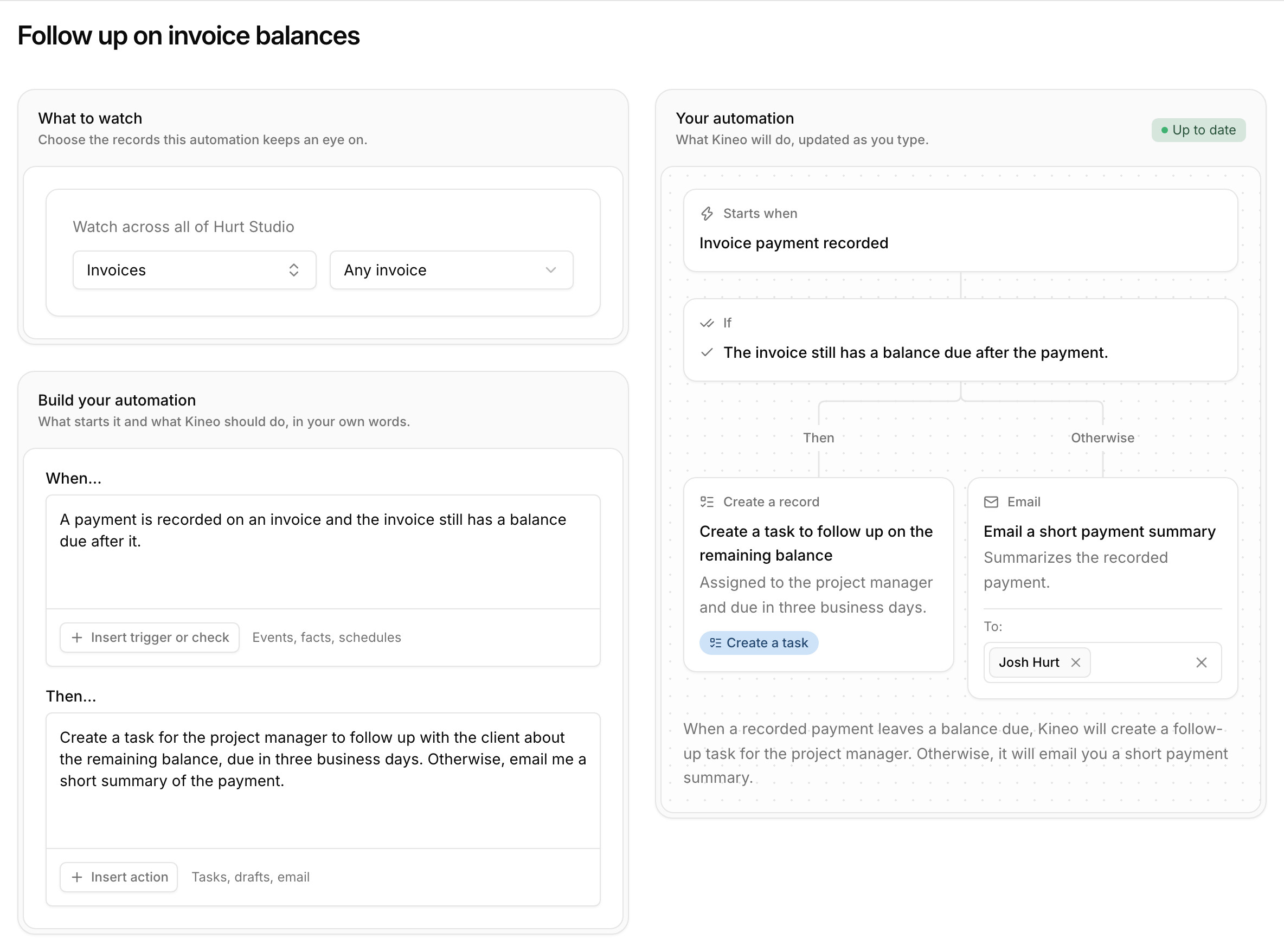
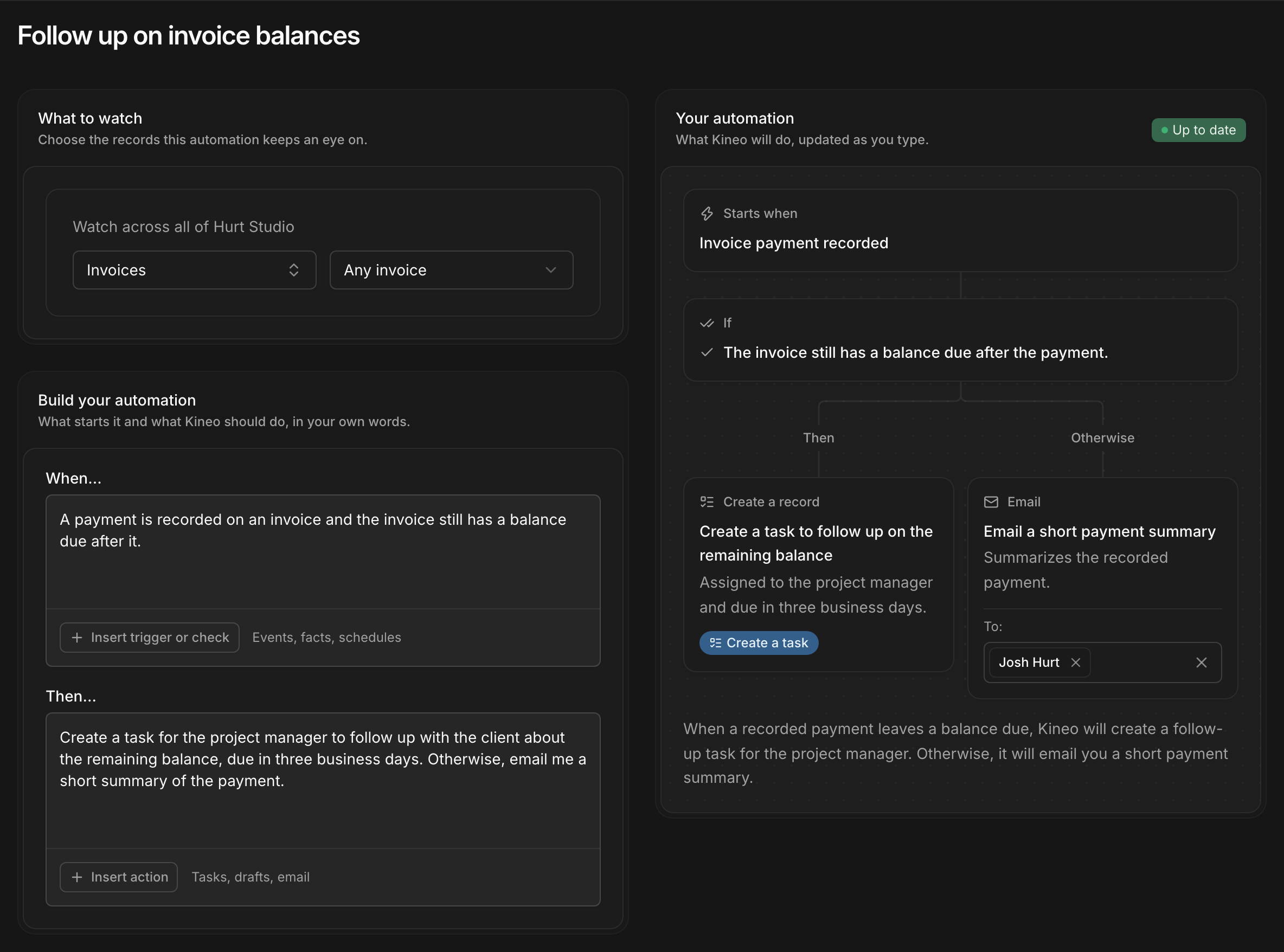
- 1Paradesk names the automation from what you wrote.
- 2Write when to act and what to do in your own words, including what to do otherwise.
- 3As you type, Paradesk lays out what starts the automation, the check it makes, and the steps on each branch.
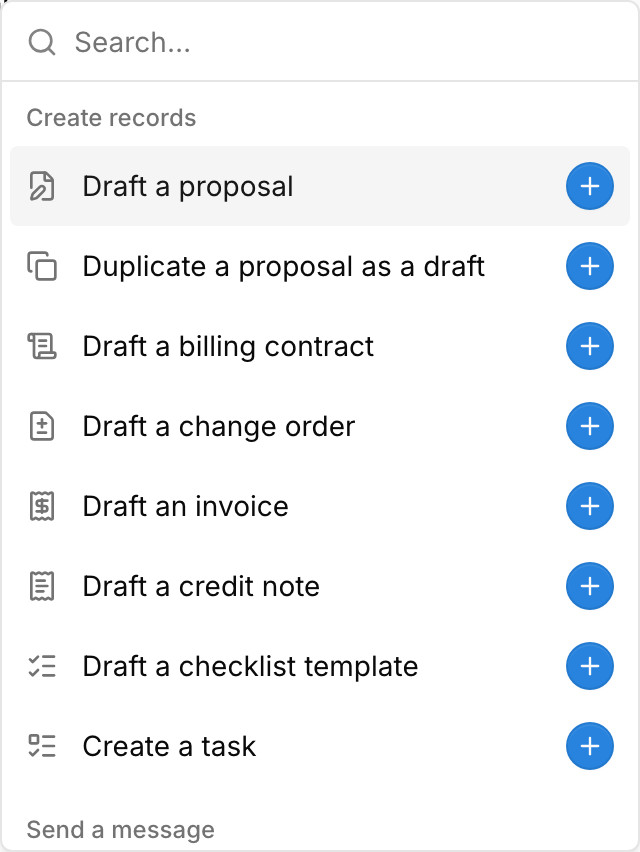
- 4Insert menus add starter wording for events, checks, drafts, tasks, and email.
See what an automation will do before you turn it on
Each step as you type
Steps it can't take
Ideas to add
Three ways an automation starts
An email arrives
Something happens in Paradesk
A condition becomes true
What an automation can do
- Draft proposals, new or copied from an earlier one
- Draft billing contracts and change orders
- Draft invoices and credit notes, using approved time and expenses
- Draft checklist templates
- Create tasks on a project or document, with the assignee and due date you describe
- Email a summary, reminder, or explanation to people on your team
The Insert menus under each editor add starter wording for any of these, and for the events and facts of the records you're watching. Drafts wait for your team to review, and each automation acts with the permissions of the person who set it up.
Add steps for when your checks aren't met
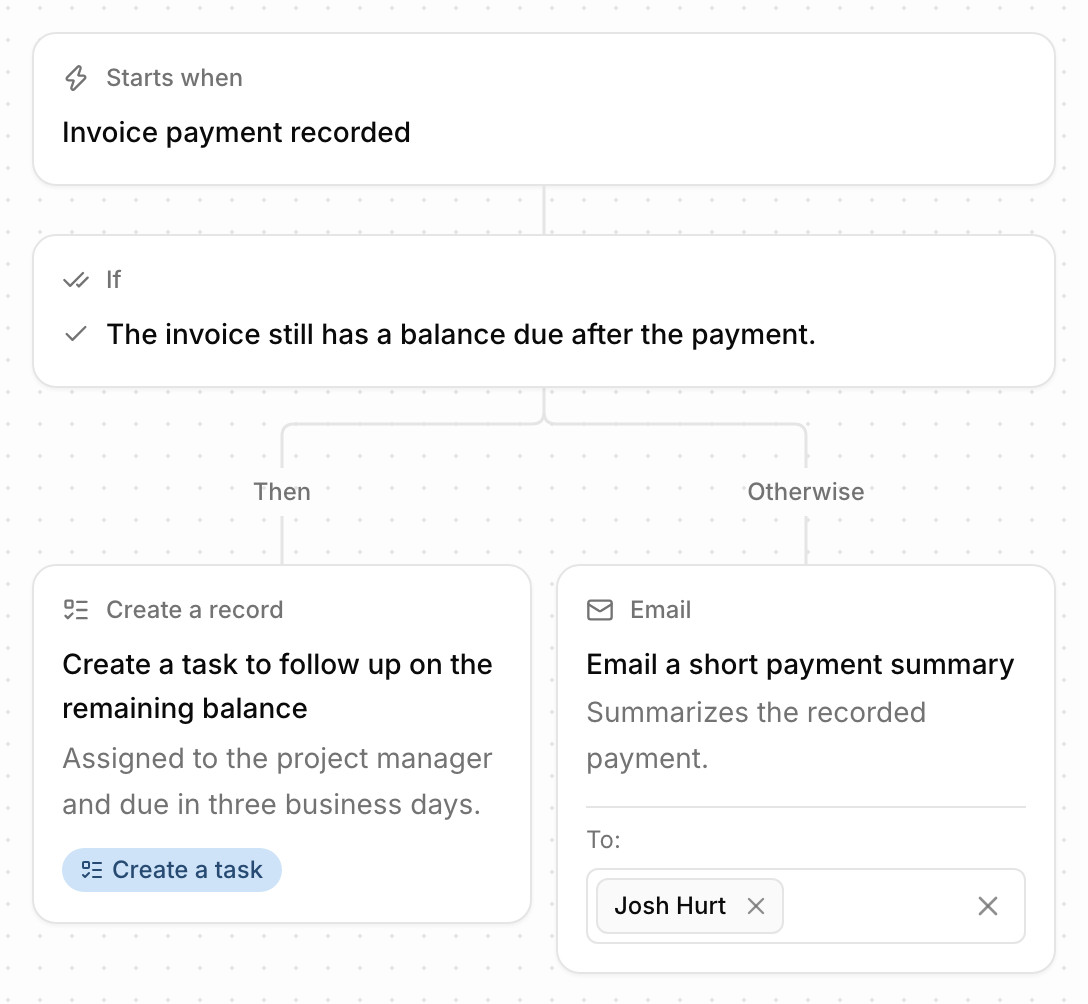
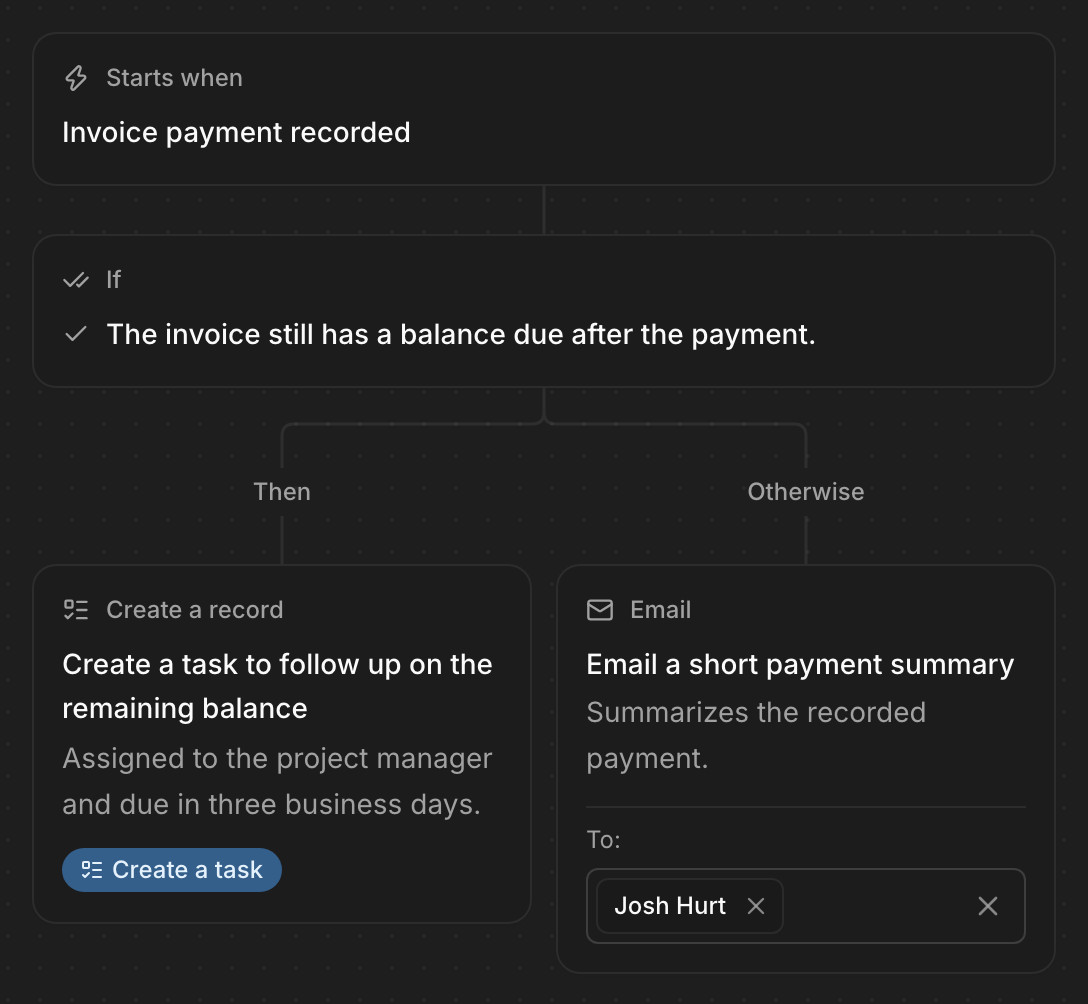
Write “Otherwise” and what to do, and Paradesk puts those steps on their own branch. When an email or event arrives that doesn't meet your checks, the automation takes the Otherwise steps instead.
Here, a payment that leaves a balance due creates a follow-up task for the project manager. A payment in full sends a short summary instead. Otherwise steps work in automations that start from an email or an event.
What happens on each run
- 1
Paradesk checks the condition
It reads the facts about each watched record, and about the email or event that started the run, and decides whether your checks are met.
Evaluating - 2
It plans the steps
It works out the drafts, tasks, and emails to prepare, from the Then steps or, when an email or event misses your checks, the Otherwise steps.
Planning - 3
It carries them out
If one step fails, the steps that succeeded are kept, and you can retry the rest. A retry never sends an email twice.
Executing - 4
Your team hears about it
Emails go to the people you chose, and run report recipients get what started the run and what it did. Every run is listed on the automation with its result.
Completed
A few automations you could set up
Each one is written in plain language. These are examples, and you can describe your own.
Scope changes by email
Fee lines running out
Phases near budget
Balances after a payment
Common questions
Try Paradesk on a project you're working on now
Set up a project with its contract and phases, invite your team, and give the assistant some of the routine work. Your first 14 days are free, with every feature included.