Everything we've added to Paradesk since May 2025
New features and major changes, newest first, dated by when they reached the app.
October 2026
- Assistant
A new automation builder
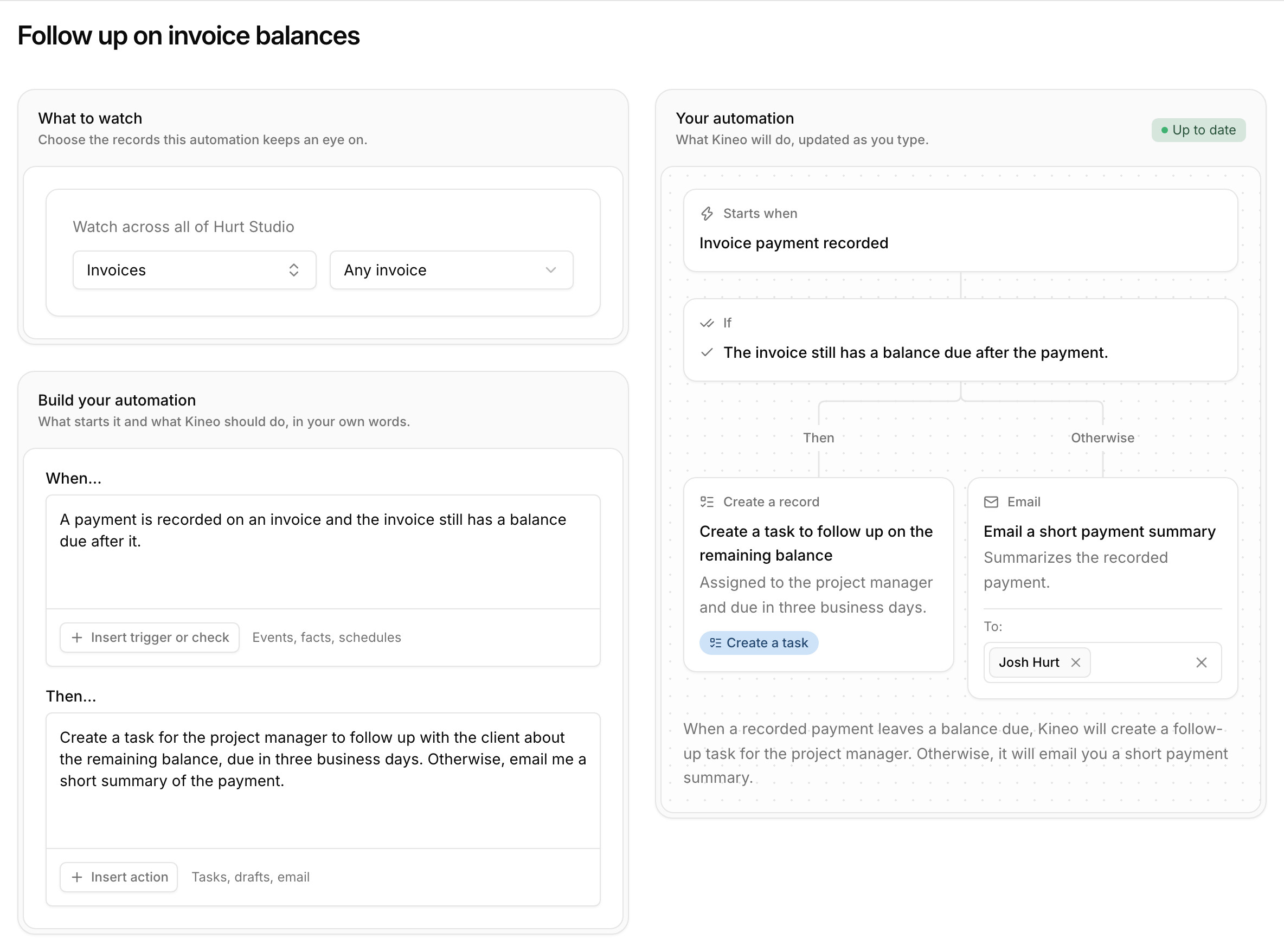
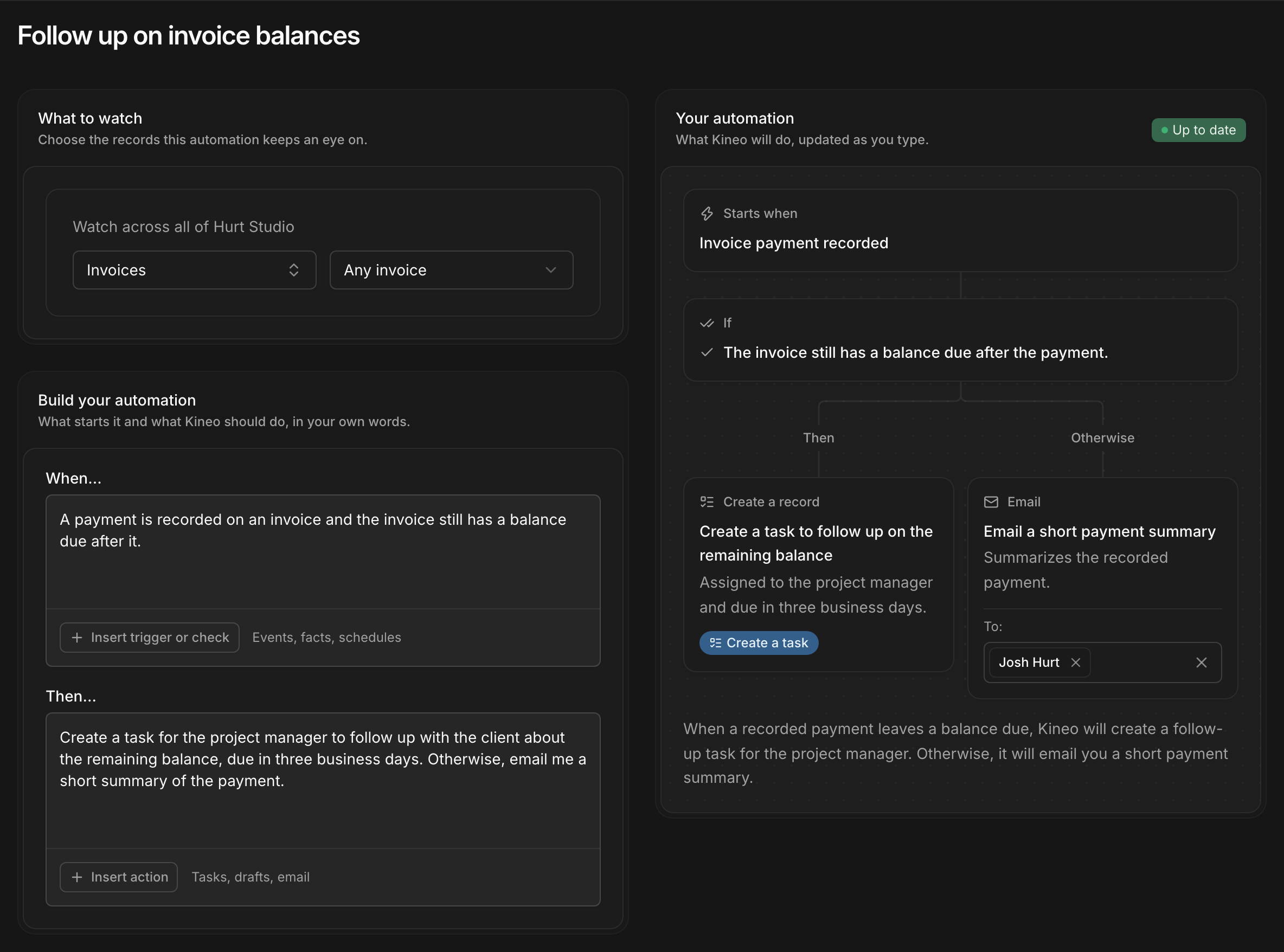
Automations have a rebuilt builder. Write when the automation should run and what it should do in your own words, and a preview beside the editors shows Paradesk's reading as you type: what starts it, the checks it will make, and each step it will take. Steps it can't take are marked with what to change, and when something is unclear it suggests wording to add. Insert menus under each editor add starter wording for events, checks, records, and email, and Paradesk names the automation from what you wrote. It's much easier to set up an automation and to check it before you turn it on.
- Assistant
Otherwise steps in automations
Automations that start from an email or an event can have Otherwise steps. Write "Otherwise," followed by what to do, and when an email or event doesn't meet your checks, the automation takes those steps instead. For example, create a follow-up task when a payment leaves a balance due, and otherwise email a summary of the payment.
- Assistant
Automations can create tasks
An automation can create a task on a project or document, with the title, assignee, priority, and due date you describe, like a task for the project manager to review a draft change order by the end of the week.
- Assistant
Email steps and an optional run report
Ask an automation to email someone, like "email me a summary of the request," and the email becomes one of its steps, sent to the members of your workspace you choose for it. Retrying a run never sends it twice. The run report, Paradesk's own email about each run, is now optional: add recipients and they get what started the run, what the automation did, and anything that needs attention.
Team Plus and Team Pro plans
There are three plans, each with every feature. Team is $29 per seat per month with 10 GB of storage per seat. Team Plus, at $49, includes ten times the assistant usage and 50 GB per seat, and Team Pro, at $79, includes twenty times the usage and 100 GB per seat. Included assistant usage resets every month on annual plans too, and Company > Usage shows how much storage your workspace has used.
A setup guide for new workspaces
New workspaces get a guide with five steps: add a client, start a project, invite your team, set billing rates, and connect QuickBooks Online. Each step is marked done once its records exist, however they were added, and steps that don't apply can be skipped, like inviting a team when you work alone. The guide sits at the top of the Dashboard and under Finish setup in the sidebar, and pages that depend on a step say what's missing, such as a project's Time page when approved time has no rates yet.
- Bill
Suggested labor categories for your kind of firm
On the empty labor categories and rate tables pages, Start with a suggested set adds the roles your industries usually bill, on top of Principal, Project Manager, and Administrative. A civil firm gets Senior Engineer, Project Engineer, Engineer in Training, Designer, CAD Technician, and survey crew roles, for example. It also creates a draft rate table with those categories, ready for your rates.
- Assistant
Set up your workspace with the assistant
Ask the assistant to help set up your workspace and it starts from the setup guide's open steps. Give it your roles and hourly rates, and it creates the labor categories and puts the rates on a draft rate table, then asks before making the table active. The guide's Set up with the assistant button opens a chat with the request ready to send.
- Manage
A Today dashboard
The dashboard opens with what needs you today: tasks due, comments that mention you, reviews waiting on you, and email with suggested updates, each with a count. A ring shows how much of the day's work is done. Below it, your tasks, mentions, reviews, inbox, and assigned documents each have their own list.
- Assistant
Questions to start a chat with
Each new chat with the assistant suggests three questions, like "Which invoices are still unpaid?" or "Which reviews are waiting on me?" Click one to fill it in. Pinning or closing the chat panel now keeps your place on the page.
- Manage
Assign tasks as you add them
Quick add has an assignee picker, set to you unless you choose someone else.
- Review
Turn any markup into a task
Create a task from any markup in a review's Annotations list. The task links back to its markup, and following that link reopens the review centered on the spot. Each annotation card shows its checklist item, who made it and when, and the tasks created from it.
- Manage
Open a task from anywhere
Tasks open in a panel over the page you're on, from the Tasks page, document and project task lists, the dashboard, notifications, and search. A link to a task opens the same panel, and refreshing the page keeps the task open.
- Bill
Generate an invoice from each contract
In Ready to Bill and the Generate invoice sheet, each contract with work to bill has its own Generate button.
- Manage
Notifications and @mentions
A bell in the header shows when you're assigned a task, mentioned in a comment, or someone comments on your task, and the same notices go out by email. Mention a teammate with @ in any task, document, or file comment. At 7 each morning, anyone with tasks overdue or due that day gets one email listing them.
- Manage
Bulk actions, filters, and saved views for tasks
Select several tasks to complete, reassign, reschedule, or reprioritize them at once. Filter the Tasks page by project, assignee, priority, or status, and save the views you come back to.
- Manage
A task board, keyboard shortcuts, and quicker task entry
Switch the Tasks page to a board by status and drag tasks between columns. Move through tasks from the keyboard (press ? for the shortcuts), type a date like "friday" or "in 2 weeks" when you add a task, and move a task between a project and any of its documents. Changes the assistant makes are marked in the task's history.
- Manage
A Tasks page for your own work
Tasks in the sidebar lists everything assigned to you or created by you, grouped by due date, and managers can see every task in the firm. Check a task off with one click and undo it if you need to, add new tasks inline, and link straight to any task.
- Manage
Task details you edit in place
Open a task to change its title and details right where they are, and changes save as you go. Its activity timeline shows comments alongside every change to the task. Assignees can edit their own tasks, and engineers and designers can create them.
- Manage
Add contacts on their own
Add a contact from the Contacts page without attaching them to a client. Each contact can have several labeled email addresses and phone numbers with one marked primary, tags group them, and Paradesk suggests matching contacts so nobody gets added twice.
September 2026
Phone layouts for dialogs, the board, and timesheets
Dialogs open as drawers from the bottom of the screen, the board works by touch, and timesheets read well on a small screen. Add Paradesk to your home screen and it opens full screen like an app.
- Assistant
Automations
Owners and admins set up automations that watch projects, tasks, documents, invoices, proposals, or a project inbox. When the condition you write matches, on a schedule, on a record event, or when email arrives, the assistant prepares drafts and emails the people you choose.
- Assistant
Assistant usage included with every seat
Each seat includes assistant usage every month. Company > Usage shows what's left and who used it, and you can buy more on the card on file or turn on auto-reload.
- Assistant
The assistant reads attachments and manages the board
Attach images, PDFs, spreadsheets, and Word files to a chat. The assistant can also set up board columns, move documents, summarize a project, show who is carrying which tasks, and hand tasks from one person to another.
Per-seat pricing
The Team plan is priced per seat with every feature included. Choose the number of seats at checkout, and add or remove seats from Company > Seats with a prorated preview.
- Assistant
Email addresses and one inbox
Every project, client, and contact can have its own email address. Forward or copy mail to it and import it into Paradesk, and it lands in one inbox for the firm and on the record's Communication page. The assistant matches each message to its project, reads the attachments, and suggests tasks, comments, or documents for someone on your team to apply.
- Bill
Project portals for your clients
Give a client's contacts access to a project portal. They sign in with a one-time code sent by email and see what's been billed and what's outstanding, download invoice PDFs, and view the contract's fee schedule. You choose what each portal shows.
Export any list
Export projects, clients, contacts, documents, reviews, proposals, checklists, invoices, and vendors as CSV, Excel, PDF, or Markdown. Finished exports stay on the Exports page for 30 days.
- Assistant
More for Claude, ChatGPT, and other MCP assistants
Connected assistants can now create and edit records across projects, billing, and reviews, and read the email imported into Paradesk. Pages your team has open in Paradesk refresh when an assistant changes something.
- Assistant
The Paradesk assistant
Open Chat from the header to ask about your projects, time, and billing, or have the assistant create and edit records for you. It knows which page you're on, asks for missing details before it changes anything, and shows the tools it used.
- Bill
Proposal attachments, PDFs, and activity
Attach files to a proposal and choose which ones the client sees, download it as a PDF, preview it the way the client will, and see when they first opened it.
August 2026
A new sidebar
Work, Billing, and People are grouped in one sidebar, with a workspace switcher at the top and breadcrumbs in the header.
- Manage
Project tasks
Tasks can belong to a project as well as to a document, and each project has its own Tasks page.
- Bill
Invoice a client without a contract
Create an invoice with your own line items from a project's Invoices page without setting up a billing contract first. The project budget shows that money as uncontracted.
- Bill
Proposals
Draft a proposal with fees, kickoff tasks, and an optional first invoice, and email it to your client. When they accept it online, Paradesk sets up the client, project, and contract, creates the kickoff tasks, and drafts the invoice.
July 2026
- Bill
Project budgets by phase and fee line
The Budget page shows what's budgeted, billed, and available for each phase and fee line, and flags lines at or over budget. Each line opens a ledger of every invoice that billed it.
- Bill
Credit notes for over-billed phases
When a phase has been billed past its budget, create a credit note that brings it back within budget.
- Bill
Billing dashboard
See overdue invoices, receivables aging, invoices that need attention, and QuickBooks Online sync health across the firm.
- Manage
Project overview and phase pages
Opening a project shows billing progress by phase, what needs attention, and open invoices. Each phase has its own page with its documents and billing lines.
- Bill
AIA G703 continuation sheets on invoices
Invoice PDFs include a continuation sheet with the scheduled value, previous and current billing, work completed to date, balance to finish, and retainage for each line.
- Bill
Project expenses
Log expenses against a fee line, approve them or mark them non-billable, and bill them on invoices alongside time.
- Bill
Billing schedules by phase
Organize a contract's fee lines by project phase. Each line bills by percent complete or by approved time and expenses up to a budget, and Generate invoice builds the invoice phase by phase.
- Bill
QuickBooks Online item mapping
Choose the QuickBooks Online item each kind of invoice line posts to, or create one from Paradesk. An invoice that can't sync yet says why.
June 2026
- Bill
QuickBooks Online
Connect QuickBooks Online, link or import clients and vendors, and send issued invoices to QuickBooks. Payments sync in both directions.
- Bill
Invoices
Generate a draft invoice from a contract's progress and approved time, adjust the lines, and issue it. Email it as a PDF, record payments, and see each client's balance and aging.
- Bill
Contracts, retainage, and change orders
Set up a billing contract for each project with a schedule of fee lines and retainage. Change orders go through approval and update the contract value.
- Bill
Labor categories and rate tables
Set labor categories and dated rate tables for the firm, a default category for each person, and rate overrides for a project.
- Bill
Timesheets and time approval
Fill in your week in My time and submit it. Project managers approve, reject, or mark entries non-billable on the project's Time tab, and the rate locks in when an entry is approved.
- Assistant
Connect Claude and other MCP assistants
Paradesk's MCP server lets assistants that support MCP sign in with a Paradesk account and search your workspace.
Sign in with Google
Sign up and sign in with your Google account.
Search the whole workspace
Search clients, contacts, projects, documents, reviews, tasks, and more from the header, or narrow the search to one type.
- Review
Download a review with its markups
Download PDF exports the drawing with every markup on it.
- Manage
Dashboards for your work and the firm
Your work lists your reviews, documents, and tasks. The company dashboard shows the document pipeline, team workload, aging reviews, and projects that have stalled.
- Manage
Documents and Reviews pages
Search, sort, and filter every document and review across all projects.
- Review
Checklist categories
Group the items in a checklist template into categories.
- Manage
Document types
Give each document a type, shown on its board card. Project and set documents can also be viewed as a table.
- Review
Response options for each checklist
Each checklist template sets its own answers for reviewers and marks which ones pass and which block. A blocking answer flags the item.
May 2026
- Manage
Files and folders on documents
Upload files into folders on any document, preview them, and comment on them. When you upload a revision, you can pick a file that's already there.
- Manage
Documents in development
Create a document before it has a file or an assignee. It stays in Development until you start review, which needs a PDF and a checklist and notifies the first reviewer.
- Manage
Project phases
Add phases to a project, set the current one, and move documents between them. New documents go into the current phase.
- Manage
Clients and contacts
Clients have company details and any number of contacts, and a Contacts directory lists everyone.
Switch between workspaces
If you belong to more than one firm's workspace, switch between them without signing out.
- Manage
Document pages and tasks
Each document has its own page with its tasks and reviews. Tasks have an assignee, a due date, and comments, and can be dragged into order.
- Manage
The board
See documents from every project on one board, drag them between columns, and filter by project, assignee, phase, or review status. Owners, admins, and project managers set up the columns.
- Review
Smart Sync (beta)
Enter the address of a city, county, or DOT checklist page, and Paradesk pulls out candidate checklists for you to edit and publish. Paradesk checks the source each week and shows you what changed before you accept it, and reviews in progress keep the version they started with.
April 2026
- Review
Outside reviewers
Assign a review step to someone outside your firm by name and email. They get a link, then answer checklist items, add markups and attachments, and submit, all in the browser without a Paradesk account.
- Review
Review workflows
Build each document's review workflow from Review, Revision, Accepted, and Rejected steps. Each person gets an email when it's their turn, and a reminder after the number of days you set.
February 2026
- Review
Ellipse markups
Draw ellipses on drawings along with the other markup tools.
- Review
A new PDF viewer for drawing review
Select, move, resize, and delete markups, draw smoother pen strokes, add callouts, and see every markup in the annotation history. Changes save as you work.
October 2025
- Review
Import checklists from CSV
Create a checklist template from a CSV file, or add items to one from a CSV.
- Manage
Delete projects, sets, and checklists
Delete a project or set along with its documents and reviews, or delete a checklist template you no longer use.
September 2025
- Review
Review emails
When a document moves to the next review step, its reviewer gets an email, and the person responsible for the document hears when review is finished.
Sign up and subscribe online
Create an account and your firm's workspace, choose a plan, and pay by card. Owners manage the subscription from company settings.
August 2025
- Review
Edit a checklist item in one review
Change or remove an item in a single review without changing its template.
- Review
Draft a checklist with AI
Describe what a checklist should cover, and Paradesk drafts the items for you to edit.
Invite your team
Invite teammates by email as an owner, admin, project manager, engineer, or designer, and manage members from company settings.
- Review
Document activity history
Every action on a document is recorded in its activity history, which you can download as a CSV file.
- Manage
Clients
Keep a list of clients and link each project to one.
July 2025
- Review
Keep or reset answers on a new revision
When you upload a revision, choose whether to clear the checklist answers and markups or carry them forward.
- Manage
Projects and drawing sets
Create projects with a job number, client, and project manager, and organize their documents into sets.
- Review
Checklist templates
Build checklists once in the Checklists library, put the items in order, and choose them when you add documents.
June 2025
- Review
Isolate one item's markups
Show only the markups for the checklist item you're working on.
- Review
Review stages
Give each document an ordered set of review stages, each with its own reviewer. Accepting a document moves it to the next stage, and rejecting it sends it back for revision.
- Review
Mark up drawings
Draw on the PDF with pen, highlighter, arrow, rectangle, and comment tools. Each markup belongs to the checklist item it's about and saves with the review.
- Manage
Documents with checklists and an assignee
Add a document to a set with its PDF, the person responsible, and the checklists it will be reviewed against, and drag documents and checklists into order.
- Review
Upload a new revision
Upload the next revision of a drawing from the review screen, and review continues on the new file.
May 2025
- Review
Filter a checklist by status
Filter a review's checklist items by status to see what's left.
- Review
Checklist reviews of drawings
Each document gets a review for every checklist it's checked against. The review screen shows the drawing beside its checklist, and the reviewer answers each item.
Try Paradesk on a project you're working on now
Set up a project with its contract and phases, invite your team, and give the assistant some of the routine work. Your first 14 days are free, with every feature included.